Saturday, May 6, 2017
Painted Effect in Photoshop Photoshop Tutorials
Painted Effect in Photoshop Photoshop Tutorials
 |
| Painted Effect in Photoshop , Photoshop Tutorials |
Hello my visitors
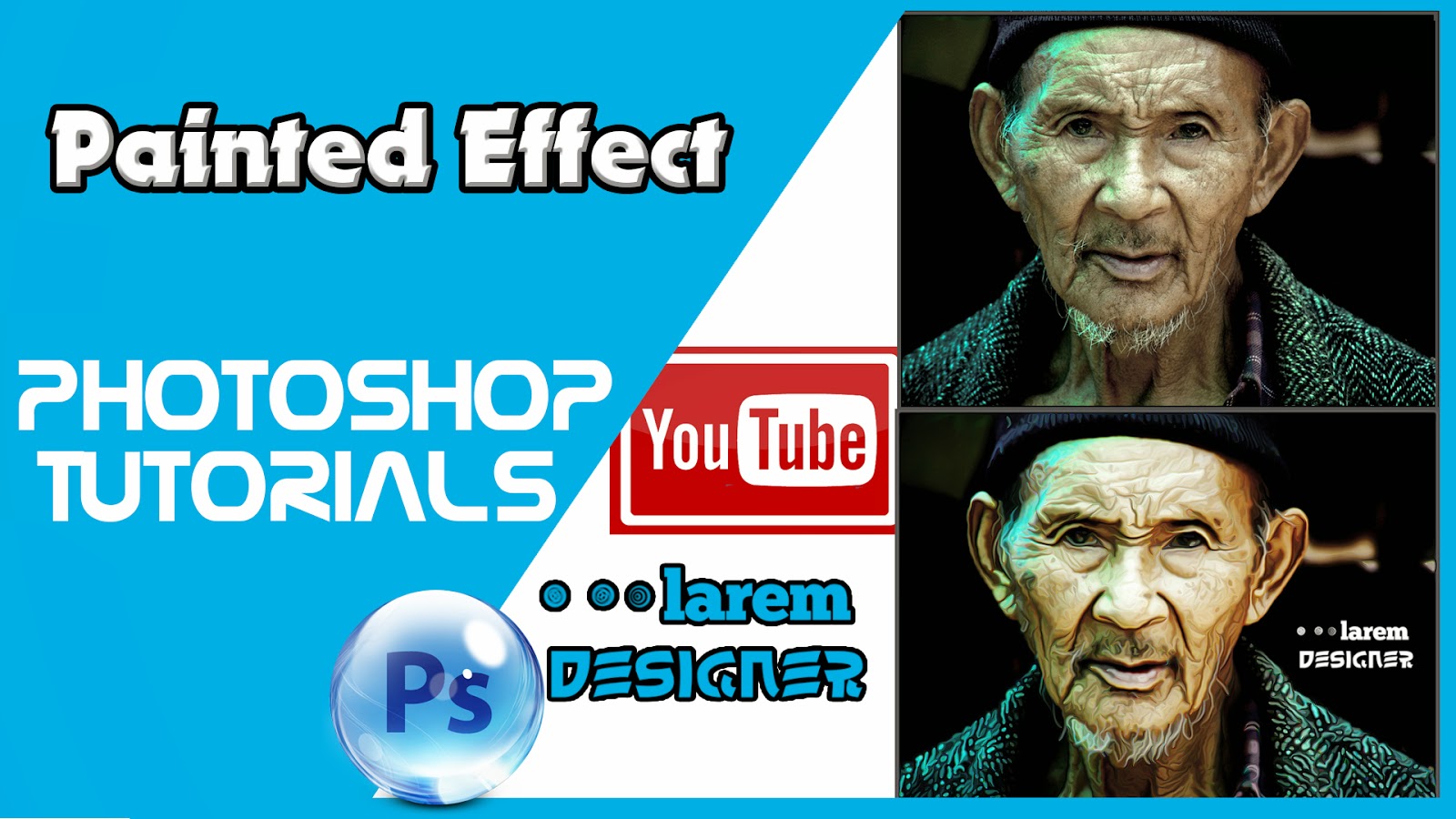
Today you will learn how to convert you picture to look like it is painted .
step 1 : add your image than adjustment curve and change your curve darken the black area and add increase the contrast in the white area.
step 2 : duplicate the background twice , for the top layer add filter -> other -> high pass and choose high pass form 1 to 3 pixels choose the value when you see the details of your picture.
step 3 : change the mode from Normal to Linear light.
step 4 : Merge the two layers and make an filter -> stylize -> Diffuse and change the mode to Anisotropic.
step 5 : When you zoom you will see some ugly effect to fix this problem just rotate the image go to image -> image rotation -> 90° cw and then click CTR + F to applicate the effect and rotate by 180° this time and click CTR + F and then rotate your image to look like it was before.
step 6 : add other filter by going to filter -> sharpen -> smart sharpen and choose the amount : 100 % and 1 radius to 1 pixel .
step 7 : the last step will add other filter -> blur -> surface Blur and choose the radius to 50 px and 15 level.
and that all .
If you want to watch the video so enjoy watching and have a nice day
dont forget to like my page FaceBook
Go to link Download

Friday, May 5, 2017
Neon Font Effect Photoshop Actions
Neon Font Effect Photoshop Actions
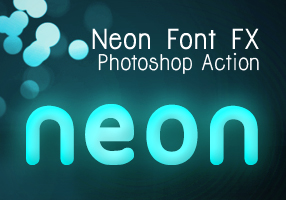 Recently I followed a cool screencast tutorial on Abduzeedo.com : Super Easy Neon Style in Photoshop and gave a quick try.
 The final result is beautiful and I like the possibility in adjusting colors before and after you hit the play button on Photoshop Actions panel. Actually it was a very easy tutorial, which I am sure everyone can easily follow just like I did. But with the series of settings on the tutorial, which you may miss them in some points to produce the neon font effect make me think to create a set of Photoshop Actions. I made 3 variants after I played a bit with the settings from that tutorial and now you can download it for free.
See the demo-screencast below to use the photoshop action. Feel free to ask me questions or send feedbacks via our comment form.
Read More
Go to link Download
Friday, March 3, 2017
New Features In Photoshop CC 2014
New Features In Photoshop CC 2014
1. Smart Guides


2. Smart Object Improvements


 If If you can’t find the file, Photoshop still has a raster version of the layer that you can use but you need to rasterize your layer. If you try to edit the layer, Photoshop will ask you if you want to rasterize the Smart Object. Click Yes and you can edit the layer.

3. Better Font Previews and Typekit Integration

 button and the Typekit website will load in your browser and automatically log you in. From here, you can select the font you want to use and sync it to your computer. The font will appear in Photoshop automatically without restarting.


4. Path and Spin Blur


5. Focus Selections


Go to link Download
Friday, October 14, 2016
Non Destructive Editing in Photoshop
Non Destructive Editing in Photoshop
The Goal:
Edit an image in Photoshop, to enhance, to improve it... and be able to easily "tweak" or undo/redo the "fixes" at a later date.
In Photoshop you are editing pixels, as a result you should always work on a "copy" of the image, not the original.
1. In Photoshop after loading an image, use the File > Save As menu
and save the files as a copy, or rename the file as... I usually just use a numbering system like imagename-001.psd.
This ensures you have an "original" RGB copy, even if you have the original raw image.
2. In your editing process you always want to use the Adjustment panel and the Adjustment layer tools.

list of adjustment layers… from the layers menu

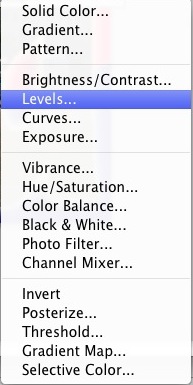
An Example of using Adjustment layers...

3. Create a Blank Layer
When using any of the tools like the Clone or Healing Brush or Spot Healing Brush to edit pixels, create a Blank Layer and use the Tool Bar to toggle on "Edit layers below"

Heres a short tutorial that uses "Edit Layers Below"
4. Make a Flattened copy of the visible layers , If you can only directly edit pixels.
This is useful if you want to use the Menu
Image > Adjustments > Shadow/Highlight…or any other "Adjustment" that does not have an "Adjustment layer".
Except...
(Note Well) The adjustment HDR Toning…
Menu: Image > Adjustments > HDR Toning…
Automatically flattens all layers. So, if you want to preserve layers before you use this adjustment, save the file first as a .PSD and then do the HDR Toning…as it flattens all layers to make a "single" image!
To Flatten Selected layers Keyboard Short cut
Mac (Command + Option + Shift + E)
PC (Control + Alt + Shift + E)
and apply the Adjustment to the flattened copy of the all the layers...

To re-edit the Shadow/Highlights… youll need to delete the layer and repeat the process...
Enjoy! As Always holler if you have a question or comment
Next up: Using Smart Layers
Go to link Download
You can read our previous tutorial if you dont know what photoshop action is and how to install it: Graphic Identity Photoshop Action.
All of Graphic Identitys Free Design Box files are FREE (for personal or commercial use). But please read: Legal Usage to employ Graphic Identitys Free Design Box files before you decide to download the files.
Graphic Identity - Neon Font FX.zip (169.54 KB)
Related Post: