Showing posts with label tutorials. Show all posts
Showing posts with label tutorials. Show all posts
Saturday, May 6, 2017
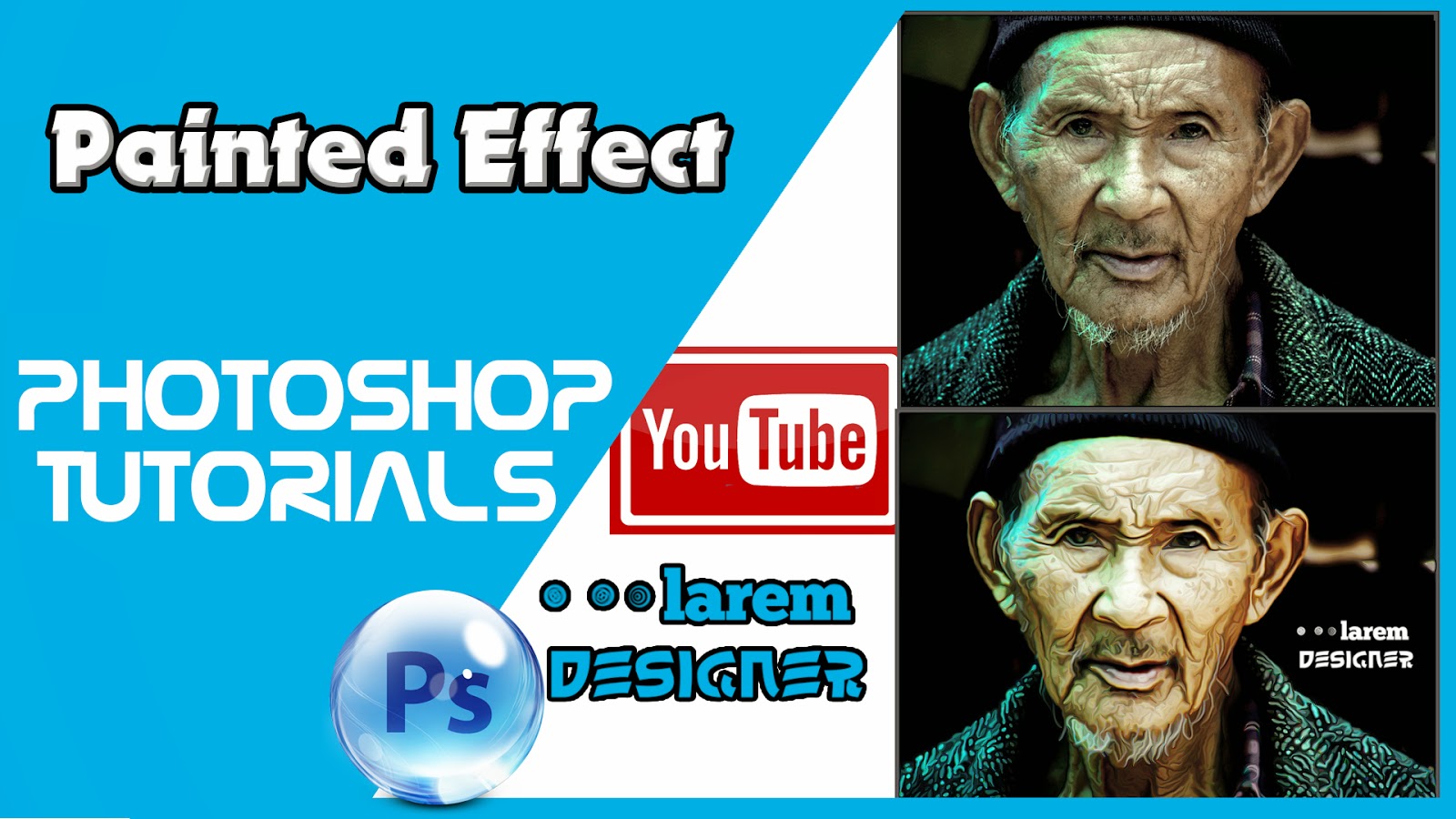
Painted Effect in Photoshop Photoshop Tutorials
Painted Effect in Photoshop Photoshop Tutorials
 |
| Painted Effect in Photoshop , Photoshop Tutorials |
Hello my visitors
Today you will learn how to convert you picture to look like it is painted .
step 1 : add your image than adjustment curve and change your curve darken the black area and add increase the contrast in the white area.
step 2 : duplicate the background twice , for the top layer add filter -> other -> high pass and choose high pass form 1 to 3 pixels choose the value when you see the details of your picture.
step 3 : change the mode from Normal to Linear light.
step 4 : Merge the two layers and make an filter -> stylize -> Diffuse and change the mode to Anisotropic.
step 5 : When you zoom you will see some ugly effect to fix this problem just rotate the image go to image -> image rotation -> 90° cw and then click CTR + F to applicate the effect and rotate by 180° this time and click CTR + F and then rotate your image to look like it was before.
step 6 : add other filter by going to filter -> sharpen -> smart sharpen and choose the amount : 100 % and 1 radius to 1 pixel .
step 7 : the last step will add other filter -> blur -> surface Blur and choose the radius to 50 px and 15 level.
and that all .
If you want to watch the video so enjoy watching and have a nice day
dont forget to like my page FaceBook
www.facebook.com/laremdesigner
and to subscribe to my Youtube channel
YouTube channel Larem Designer
and to flow me on twitter
www.twitter.com/laremdesigner
Go to link Download

Subscribe to:
Posts (Atom)